How do I customize my page? Design and links
Updated on
What does customizing my page mean?
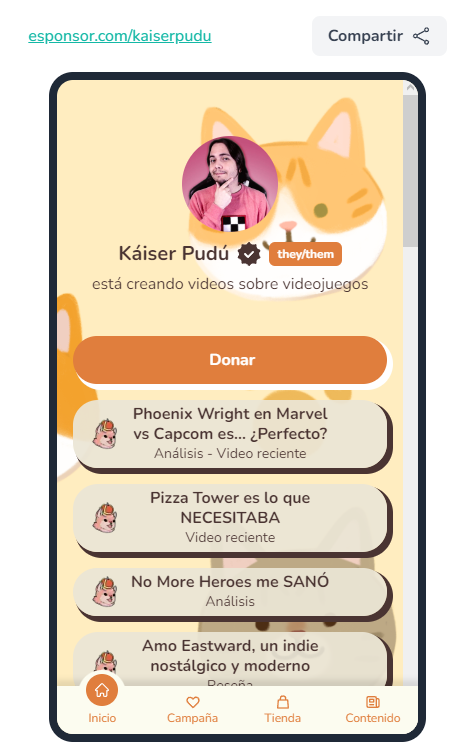
These are the various options eSponsor offers so you can express who you are through your page, with the colors you like and the images you choose.
How do I customize my page?
Customize your profile—change the background, colors, links, and much more 👇
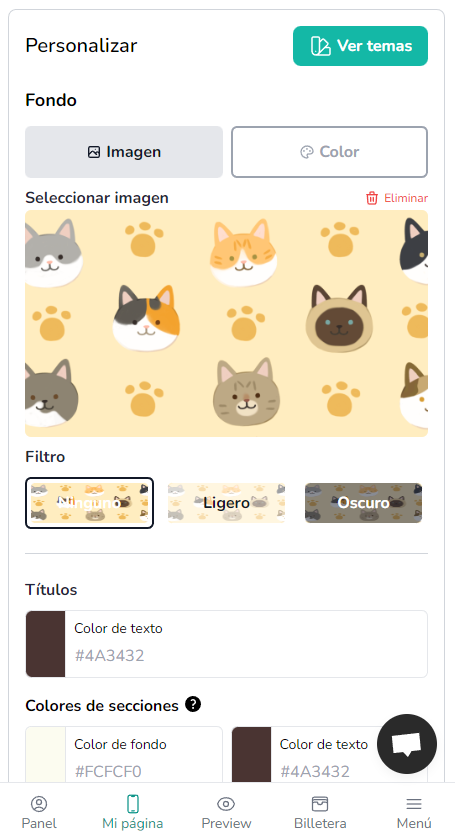
- From your creator dashboard, click "My page" and then "Customize." You'll find our profile design tool.
- If you want, you can browse themes by clicking "View Themes" to see our presets, but you can also create your own.
- Choose any background you like. We recommend a 1920 x 1080 image with the best part of the design centered for mobile view.
- Edit the colors of text, links, and more. Look for color palettes for a beautiful presentation.
- You have other options too, like borders, shadows, and opacity.
- Customize your profile and express yourself. Post a story on Instagram and tag @esponsor—we'll share it 🙌
How do I add links?
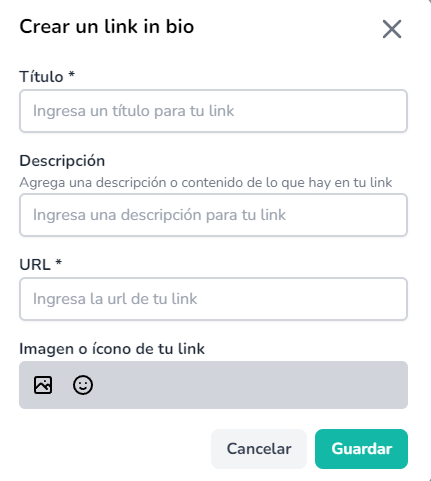
- To add your links, from the creator dashboard click "Link in Bio", then "New link."
- Add the URL, a title, and description. If you want, you can choose from preset icons or upload your own 😎
- Finished your profile? 🤔 Now proudly share your customized page in your social bios. This is important so people find you and you grow doing what you love 🤝
Was this article helpful?
Your feedback helps us improve this guide.