Telegram guide: connect your groups and channels to eSponsor
With the Telegram integration you can sell access to your private groups and channels. eSponsor handles everything: people who subscribe or buy access get in automatically, and people who cancel lose access, without you adding or removing anyone by hand.
You can open it at esponsor.com/app/telegram, or from your Creator dashboard menu under Connections → Integrate Telegram.
Before you start
- Have the Telegram app installed on your phone.
- Create the group or channel you want to connect, and be its admin.
Step 1: Connect your Telegram account
- Tap Connect with Telegram.
- Telegram will ask you to log in and authorize the connection with eSponsor.
- Go back to eSponsor. You'll see that Telegram is connected. Tap Continue.
Step 2: Add the bot to your group or channel
- Choose whether you're connecting a Group or a Channel.
- Tap Add bot to a group (or Add bot to a channel).
- Telegram opens and asks you to pick the group or channel. Pick it and confirm.
- Make the bot an admin when Telegram asks. In channels, leave Manage messages and the other permissions turned on.
The bot is called @eSponsorOficialBot. It needs to be an admin to invite your subscribers and remove people who no longer have access.
Step 3: Go back to eSponsor
When you come back, eSponsor detects your group or channel on its own. You'll see Verifying connection... for a few seconds, and then your chat shows up under Connected chats.
If the bot joined but isn't an admin yet, we'll let you know. To give it permissions in Telegram:
- Tap the group name at the top.
- Select Edit → Administrators.
- Tap Add administrator.
- Search for and select the eSponsor bot.
Then go back to eSponsor and tap Verify integration.
If eSponsor doesn't detect your group
If you see We could not detect the group yet, tap Verify again. If it still doesn't show up, open More integration options. You have two alternatives:
- Command: tap Copy command and send it in the group or channel, from the same Telegram account you connected. The chat links on its own.
- Connect by ID: open the group or channel at web.telegram.org, in your browser rather than the app. Copy the number at the end of the address, for example
-1001234567890. Paste it into Telegram chat ID and tap Connect chat.
Step 4: Link your subscriptions or products
Your group is now connected. Next, tell eSponsor who gets in:
- Subscription tiers: add the group as a perk in your tier. See the Subscriptions guide.
- Shop products: create a Telegram group access product. See the shop guide.
Under Manage groups you see each connected chat with its tiers, subscribers and value. If you don't have tiers yet, tap Create subscriptions.
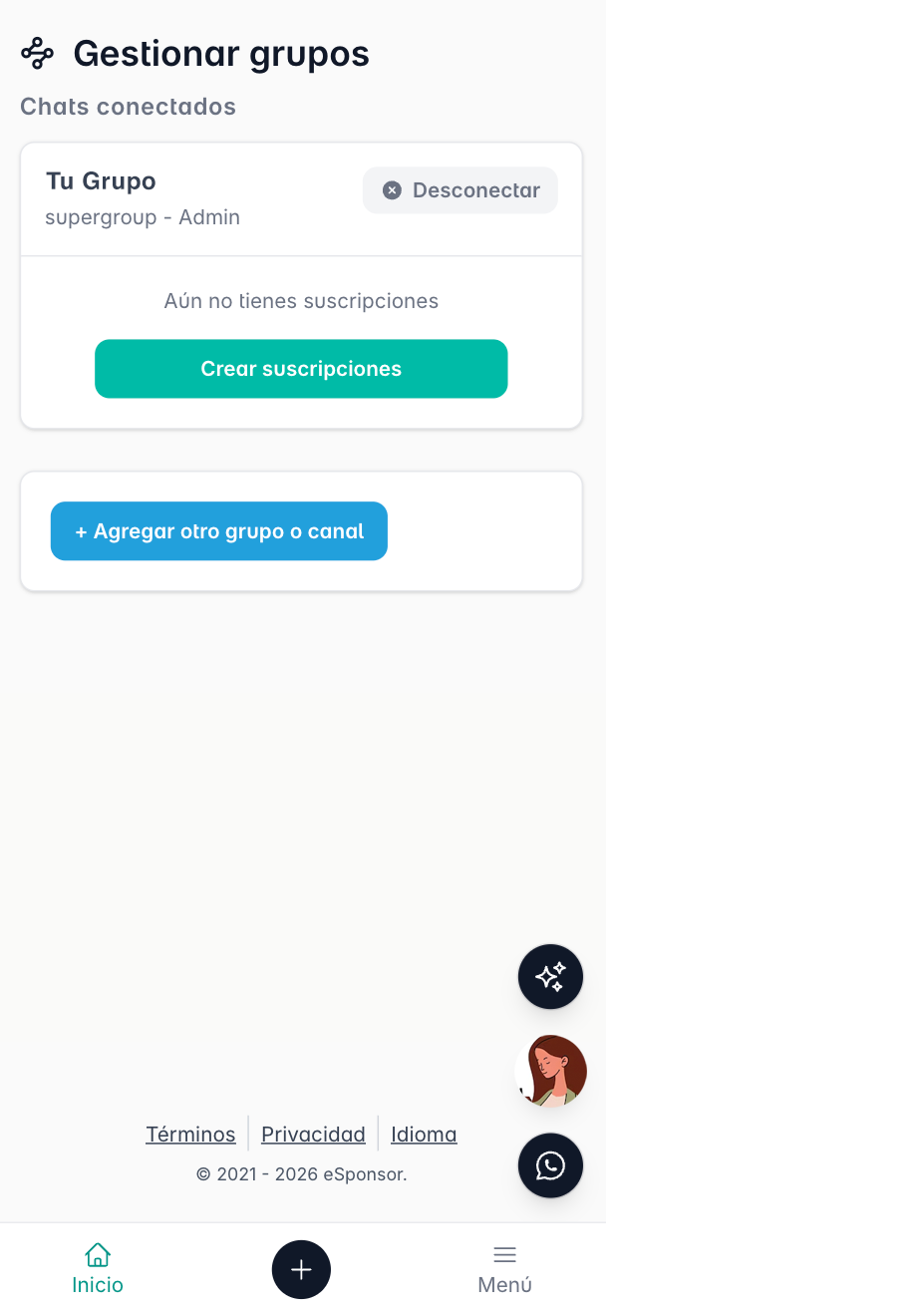
Add more groups or channels
Under Manage groups, tap + Add another group or channel and repeat step 2. You can connect as many as you like.
Chat statuses
| Status | What it means |
|---|---|
| Active | Everything works. The bot manages access. |
| Missing bot permissions | The bot isn't an admin or is missing permissions. Grant them in Telegram. |
| Bot removed | Someone removed the bot from the group. Add it again. |
| Pending | We're finishing connecting the chat. |
| Connection expired | Connect your account again with Reconnect Telegram. |
Disconnect
- A group or channel: under Manage groups, tap Disconnect on that chat. The bot leaves and members may lose access.
- Your Telegram account: under Integrate Telegram, tap Disconnect. The bot leaves all your groups and channels, and they're no longer managed automatically. It may take a few minutes to leave all of them. You also leave other creators' groups you joined through eSponsor.
Are you a fan who wants to join a group? See how to join a private Telegram group.
Was this article helpful?
Your feedback helps us improve this guide.